 kikomono-deals
Start with the destination
For a message draft, editable text may be enough. For a table, you need the values to stay attached to their row and column labels. For a handout, inspect the final page layout as well. Write down the destination and the action you must perform there before generating a long answer. Check the export option in your own account; this guide does not promise unlimited access or a particular free-plan entitlement.
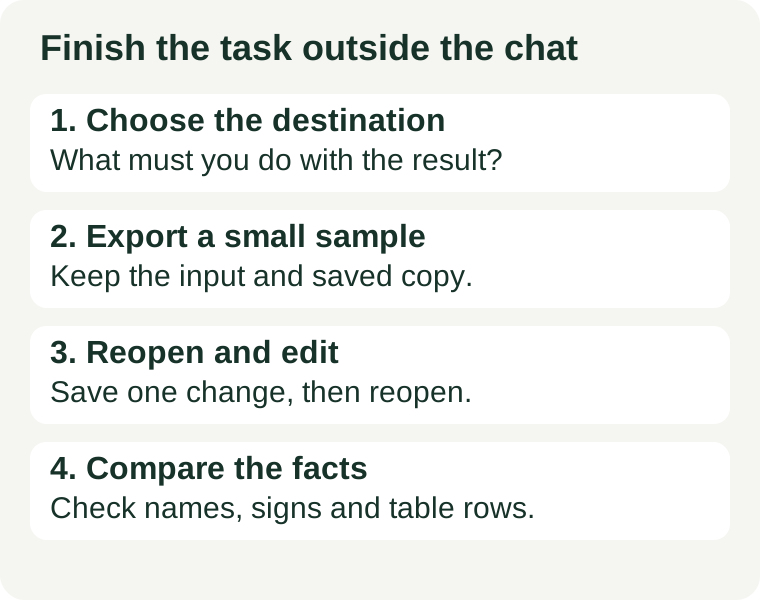
A documented route: Gemini to Docs or Sheets
Google documents a signed-in export route. Below a Gemini response, select Share & export, then Export to Docs to create a new document in Drive. For a response containing a table, Export to Sheets appears at the table's bottom right; tables containing images cannot use this route. Options vary by app and, for Workspace accounts, by settings and availability. The destination service's terms apply. See Google's export instructions. These are documentation checks, not our account-level export test.
Try our Maple pop-up fixture
The following fictional notes deliberately combine an exact date, a negative decimal, similar names and a missing owner. Use them instead of private client material. The exercise tests whether you can finish your own workflow; it does not score a model's general intelligence.
Project: Maple pop-up
Date: 2026-10-18
People: Mina prepares signs; Nina checks the stock list.
Stock: blue mugs 12; green mugs 7.
Adjustment: -3.50 USD (refund, not a new charge).
Delivery owner: UNKNOWN.
Do not invent an owner or change the date.
Ask for a short project update and a two-column stock table. Keep the person assignments in the update. Require the adjustment to retain its minus sign, currency and refund meaning. Tell the tool to preserve UNKNOWN literally. Export the answer using the route you intend to use for your real task.
Save a copy of both these input notes and the answer before making corrections. Give the exported file a distinctive name such as maple-export-check-2026-10-05. Reopen the destination independently, rather than relying on a preview inside the chat. If your workflow requires a local file, download that format and reopen that file too.
The acceptance card
Use one row per check. A missing feature is a blocked step, not a pass. Record the app, visible plan label, date and export destination with the card so a later change does not silently overwrite today's result.
| Check | Expected result | Record |
|---|---|---|
| People | Mina signs; Nina stock. No swapped assignments. | Pass / repair / blocked |
| Date | 2026-10-18 stays exact. | Pass / repair / blocked |
| Money | -3.50 USD remains a refund. | Pass / repair / blocked |
| Table | Blue mugs 12; green mugs 7 in the correct rows. | Pass / repair / blocked |
| Missing fact | Delivery owner stays UNKNOWN. | Pass / repair / blocked |
| Editing | Change blue mugs from 12 to 13; save, close and reopen. The other row remains 7. | Pass / repair / blocked |
The editing check is an intentional change made after comparison. Keep the original 12-unit version and label the edited copy as a demonstration; do not mistake that deliberate edit for the input's true stock count. If you only need a read-only handout, replace the editing check with your actual requirement, such as legible printing and complete page boundaries.
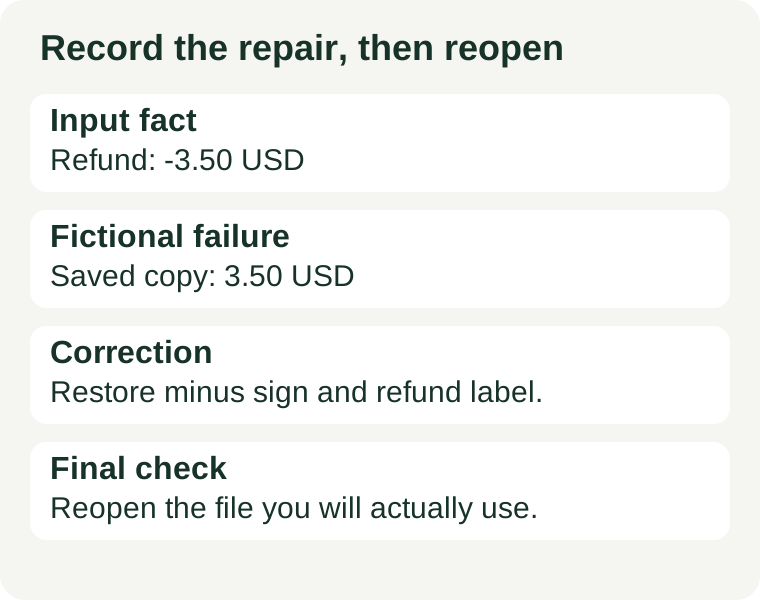
Repair one failure at a time
Suppose the exported table shows 3.50 USD while your notes say -3.50 USD. This is a constructed example, not an observed product defect. Record: input fact = refund -3.50 USD; saved result = positive 3.50 USD; consequence = the sign no longer describes the intended adjustment; repair = restore the sign and refund label in the destination.
After the repair, save and reopen again. Check the amount in the file you will actually send, not just the corrected chat message. Keep the correction in a short log alongside the file. If the table's layout is the only problem, repair the column widths in the destination and check that the values still match their headings; do not ask AI to recreate correct numbers merely to improve appearance.
If export is unavailable, record the exact blocked step. For a small text-only draft, copying the text into your own editor may be a suitable fallback. Label this as manual transfer and repeat the same acceptance checks. A screenshot is not a substitute when your requirement is editable text. Decide whether the remaining manual work fits your task before choosing a different tool or paying for a plan.
Saved copies can diverge
Google's current Gemini Notebook notes help says exported Docs or Sheets changes do not sync back to the notebook, and notebook sharing permissions do not carry over. A response saved as a note cannot be edited after creation. Its mobile app does not currently support notes. Treat the export as a separate destination and inspect its sharing settings. These limits concern that documented notes route, not every AI tool.
Questions before you use the file
Does a PDF export prove the result is editable?
No. Match the export format to the editing action you need and try that action in the destination. A PDF that looks right may satisfy a handout task while failing your spreadsheet task.
Why does a table look different after export?
Appearance and data correctness are separate checks. Compare labels and values first, then adjust layout in your editor. A community discussion about Gemini table exports reports formatting frustration; it is an individual experience, not proof of a universal defect.
Can I use this card without testing every AI tool?
Yes. Apply it to the one tool, account and destination you intend to use. Leave untested rows untested. Record the result and manual repairs rather than turning a single exercise into a ranking.
Draft your first useful AI result · Prepare readable PDF text · Compare free entry points
Reviewed 2026-10-05. Fictional fixture, acceptance card, repair example and diagrams created for this guide. No hands-on Gemini export or time-saving measurement claimed.