 KIKOMONO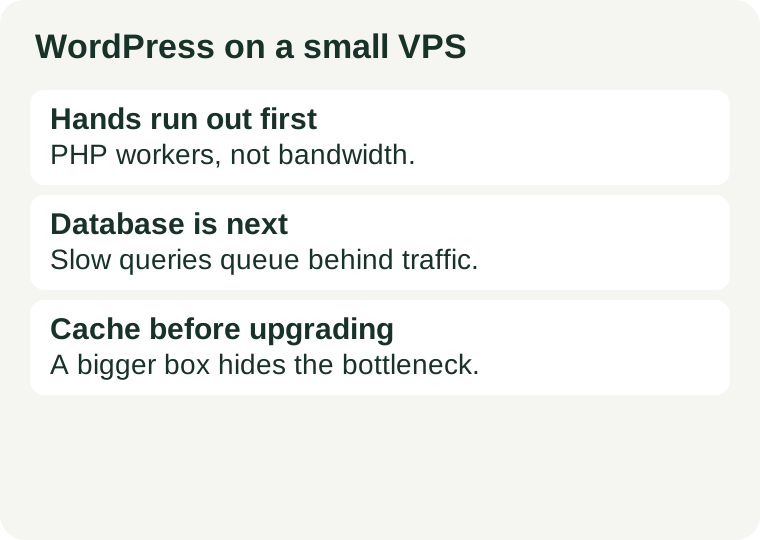
The short answer
When traffic grows on a WordPress site running on a small VPS, the usual failure order is: first, PHP runs out of workers to build pages; second, the database slows down under uncached queries; third, memory runs out and the server starts swapping or killing processes. Bandwidth and disk space are rarely the first problem, and disk speed matters mainly during backups and heavy plugin work, not during a normal traffic rise. The fix order is the same in reverse: cache pages so PHP does less work, cut the database work that caching cannot remove, and only then buy more memory or CPU. Upgrading the server before caching is like hiring more cooks while the kitchen door stays jammed.
One distinction shapes everything below: steady growth and sudden spikes break a server differently. Steady growth gives you weeks of warning — slower pages, then occasional timeouts. A spike, for example a post shared widely or linked from a popular newsletter, arrives all at once and can exhaust the PHP worker pool in minutes. The diagnostic steps are the same, but a spike rewards preparation (caching switched on before the post goes out) far more than any upgrade bought during the outage.
Why WordPress is hungry in a specific way
Unlike a static site, where the server mostly hands over files it already has, an uncached WordPress page is assembled on every visit: PHP runs the theme and plugins, the database answers several queries, and only then does a page exist to send. That assembly line is the cost of every uncached visit. A small VPS typically has few CPU cores and a small amount of memory, so it can run only a limited number of these assemblies at the same time. Everything in this guide follows from that one fact.
Caching changes the equation completely. A page cache stores the finished page and serves it without running PHP or touching the database, so a cached visit costs the server almost nothing. That is why the first question about any slow WordPress site is never "how big is the server?" but "how much of this traffic is actually reaching PHP?" If the answer is "nearly all of it", the bottleneck is usually fixable without spending anything.
What breaks first: the order, and how each failure looks
1. PHP worker exhaustion — the usual first failure
PHP-FPM, the process manager most VPS WordPress setups use, keeps a pool of worker processes. Each uncached visit occupies one worker until the page is built. When all workers are busy, new visitors wait in a queue; if the queue fills, they get timeouts or 502/504 errors while the site still looks "up" from the server's point of view. The server itself may show modest CPU usage, because the workers are waiting on the database or on each other rather than computing. That mismatch — errors for visitors, a calm-looking server — is the signature of worker exhaustion.
Common causes are a traffic spike, a slow plugin that makes every page take seconds to build (so each worker is occupied longer), or a page cache that is bypassed for logged-in users, search pages, or cart and checkout pages. A site can therefore break under moderate traffic if its pages are slow to build, or survive heavy traffic if its pages are fast and mostly cached. Raw visitor counts alone do not predict the breaking point; concurrent uncached requests do.
2. The database — the second failure, and the slowest to diagnose
Once PHP workers are busy, the database is usually why they are busy. WordPress stores posts, options, comments and plugin data in MySQL or MariaDB, and some plugins add heavy queries: unindexed searches, statistics that count rows on every page load, or related-post queries that scan large tables. Under traffic, these queries queue up, each one holding a PHP worker hostage while it waits. The visible symptoms are pages that load slowly but eventually arrive, admin pages that crawl, and a database process consuming most of the CPU.
Database trouble is also the failure most often misread as "the server is too small". Adding CPU can help a database that is genuinely working hard, but it does nothing for a single slow query that no amount of hardware makes fast — it just lets the slow query run on a more expensive machine. Find the slow queries first; the fix is often an index, a plugin setting, or dropping a plugin, not a larger plan.
3. Memory pressure — the failure that kills things outright
Every PHP worker, the database server, and the web server itself consume memory. On a small VPS the total is tight, and traffic growth pushes all three up at once. When memory runs out, the Linux kernel's out-of-memory killer terminates a process to save the rest — often the database or a PHP worker — which produces sudden, confusing errors: the site works, then shows a database connection error, then works again. Alternatively the server starts swapping to disk, which makes everything dramatically slower rather than failing cleanly. Either way, memory failure is the least graceful of the three, and it is the one most worth preventing rather than diagnosing mid-outage.
Memory pressure often arrives disguised as the other two failures: fewer workers can run, queries slow down, and the site degrades gradually before anything is killed. If your server's free memory is consistently near zero and swap is in use, treat memory as the binding constraint even if the first visible symptom was a timeout.
4. Disk and bandwidth — usually last, with two exceptions
Disk speed matters when WordPress writes a lot: backups running during peak hours, image optimisation regenerating thumbnails, or a plugin logging every visit. Disk space matters when uploads, backups or logs fill the disk — at which point the database typically fails first with write errors. Bandwidth matters for media-heavy pages, but ordinary text-and-image WordPress traffic rarely saturates a VPS network link before PHP or the database gives out. If your monitoring shows the network link saturated while CPU and memory look fine, check whether large uncompressed images or uncached media files are the real story, and whether a content delivery network (CDN) should be serving them instead of the VPS. For background on how storage type fits into a buying decision, see our NVMe verification guide.
| Symptom visitors see | Likely bottleneck | First check |
|---|---|---|
| Timeouts or 502/504 errors, server looks calm | PHP workers exhausted | PHP-FPM status: busy workers vs pool size |
| Pages load slowly but eventually arrive; admin is slowest | Database under load | Running queries and the slow query log |
| Database connection errors that come and go | Memory pressure, processes killed | Free memory, swap use, system logs for out-of-memory kills |
| Everything slow, including the server console | Swapping, or disk contention from backups | Swap use and disk activity during backup windows |
| Media-heavy pages crawl; text pages fine | Bandwidth or unoptimised media | Image sizes and whether a CDN serves them |
How to tell which one hit you
Check in this order during, or immediately after, a slow period — the evidence fades quickly once traffic drops.
Look at memory first, because it is the cheapest check. Run free -h and look at available memory and swap use. Swap in active use during traffic is a warning; swap growing steadily is a diagnosis. Check the system log for out-of-memory kills if the database has restarted unexpectedly.
Look at the PHP worker pool second. PHP-FPM can expose a status page showing active workers, the queue length, and how often the queue has filled. A queue that is regularly non-empty means the pool is too small for the uncached traffic, or pages are too slow to build — both need attention, but they are different fixes. Raising the worker count without fixing slow pages just lets more slow pages run at once and can push the server into memory trouble instead.
Look at the database third. Show the running process list to see which queries are stuck, and enable the slow query log for a period to catch the repeat offenders rather than guessing. A query that appears in the slow log on every page load is a plugin or theme problem, not a hardware problem. The Query Monitor plugin (free, in the official WordPress plugin directory) shows per-page queries and their time on the admin bar while you browse, which is often the fastest way to name the culprit on a small site.
Look at what is actually cached. Check the response headers of a popular page as a logged-out visitor: a page-cache hit means PHP never ran for that visit. If popular pages are not cached, find out why before anything else — common reasons are a cache plugin misconfigured, a plugin setting pages as uncacheable, or query strings on shared links that bypass the cache. Logged-in traffic (members, shop customers, commenters) bypasses page caching by design, so a site with a large logged-in audience breaks earlier than its raw visitor count suggests.
Fixes in order, before you upgrade
1. Turn on full-page caching and verify it works. This is the single highest-leverage change for most WordPress sites. Serve cached pages to anonymous visitors, and confirm with response headers that popular pages are actually hits, not misses. If a plugin claims to cache but every request still reaches PHP, the cache is decoration, not a fix.
2. Put static assets behind a CDN. Images, stylesheets and scripts served from a CDN stop consuming VPS bandwidth and connections, and they load faster for distant visitors. This does not fix PHP or database load, but it removes the one load a CDN can remove, and it protects the site during spikes when media requests multiply alongside page requests.
3. Add object caching for the database work that caching cannot remove. Logged-in pages, search results and dynamic fragments still query the database. An object cache (Redis or Memcached, both standard open-source tools) stores repeated query results in memory so the database answers less often. This helps most when the same queries repeat across visitors; it helps least when every query is unique.
4. Cut plugin weight deliberately. Audit plugins by what they do on every page load, not by how useful they feel. Statistics, related-post and security plugins that run queries or scans on every visit are the usual suspects. Remove what duplicates another plugin's job, and replace a heavy plugin with a lighter one or with a server-level alternative where one exists. Every plugin removed is workers and memory freed on every single visit.
5. Tune, then upgrade — in that order. Match the PHP worker count to the memory available: each worker consumes memory, so a pool sized for a large server will itself cause memory failure on a small one. Separate the database onto its own server only when the database is provably the constraint and the site's income justifies the added complexity and cost. When you do upgrade, upgrade the constrained resource — memory for memory pressure, CPU for genuinely CPU-bound work — rather than buying a generically "bigger" plan and hoping it covers the unknown. Our first VPS guide covers sizing the whole server before purchase, and our promotion checklist covers the renewal price trap: a cheap first term that doubles later changes the upgrade maths.
When a small VPS is still the right home, and when it is not
A small VPS remains a good home when most traffic is anonymous and cacheable, the plugin set is light, and traffic grows steadily enough that you notice degradation before it becomes an outage. It stops being the right home when a large share of traffic is logged in or dynamic (membership, shop, forum), when spikes are a normal part of the site's life rather than an exception, or when the owner has no time to watch the diagnostics above. In those cases the honest options are a larger VPS with the tuning above already done, or a managed WordPress host where caching, object caching and scaling are the provider's job — at a higher price and with less control. Compare the two routes, not just the two prices, with our VPS versus managed hosting guide; a managed host that costs more but never pages you at night can be cheaper than a VPS in attention, which is the resource a small site's owner is usually shortest on.
Before the next traffic spike
Work through this list while the site is healthy: page caching on and verified with response headers; a CDN serving static assets; backups scheduled outside peak hours; the slow query log checked after any plugin change; and a note, kept with the server, of the normal values for free memory, busy PHP workers and database CPU — so that during an incident you compare against your own baseline instead of guessing. If the site has outgrown this checklist, that is itself the signal: the constraint is no longer one setting, and it is time to size the next home deliberately rather than reactively.
Sources and review scope
This guide describes standard WordPress, PHP-FPM, MySQL/MariaDB and Linux behaviour as documented in their public manuals: PHP-FPM's status page and process manager settings, MySQL's slow query log and process list, and Linux memory and swap reporting. No provider prices, plans or performance figures are cited, because the failure order depends on the site's own traffic shape and plugin set, not on any vendor's specification. Method notes checked 2026-10-24. This article contains no affiliate links.