 KIKOMONO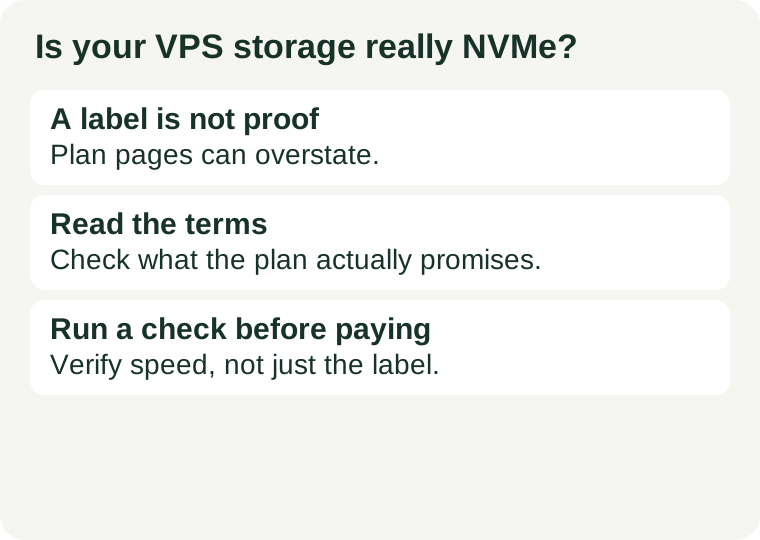
The short answer
Verify NVMe storage in three stages. First, read the plan page and the terms: look for the exact storage type, whether it is local or network-attached, and whether the label covers the boot disk, extra volumes, or both. Second, ask pre-sales support the five questions below and keep the answers. Third, after the server is running, check the disk device name and type inside the server. If the plan page is vague, support will not answer in writing, or the in-server checks contradict the label, do not pay the NVMe premium — buy the cheaper plan or pick a provider that documents storage clearly.
One warning before the details: no check a buyer can run proves the full speed of a shared host. On a VPS, neighbours share the same hardware, so even genuine NVMe hardware can feel slow at busy times. What you can verify is the storage type the provider assigned to your server, not a guaranteed speed.
Start with the words on the plan page
Marketing pages use several phrases that sound alike but mean different things. Read them literally.
| What the page says | What it usually means | What to check |
|---|---|---|
| NVMe SSD storage | Flash storage on an NVMe interface | Does it cover the boot disk and any extra volumes? |
| SSD storage | Flash storage, but not necessarily NVMe | Do not assume NVMe from speed words like "blazing fast" |
| NVMe cached / NVMe accelerated | Only a cache layer may be NVMe; the main disk may be slower | Ask what the main disk itself is |
| High-performance storage, no type named | Nothing verifiable | Ask support to name the type in writing |
Also check whether the storage is local to the host machine or attached over the network. Network-attached storage can still use NVMe drives at the other end, but it adds a network hop and its behaviour differs from a local disk. A plan page that says nothing about this has left out a basic fact, not a detail.
For the background on what storage type changes in practice, read our NVMe, SSD and HDD comparison first: for a cached static site the disk barely matters, while for a database-backed site it is part of the daily experience.
Five questions to ask support before checkout
Send these before you pay, and save the reply. A provider that answers clearly is already a good sign; a provider that answers with more marketing language is telling you something too.
1. Is the boot disk local NVMe, or network-attached storage? This is the single most informative question. Local and network-attached storage behave differently under load and during host maintenance.
2. Does the NVMe label cover the included disk, or only extra volumes I buy separately? Some plans advertise NVMe for add-on volumes while the included disk is ordinary SSD.
3. Is the disk shared with other customers on the same host? On a VPS the honest answer is almost always yes. What matters is whether the provider says so plainly instead of implying dedicated hardware.
4. Can I add storage later without rebuilding the server? This decides whether a small start is reversible. A plan that forces a rebuild to grow is a different commitment from one that lets you attach a volume.
5. If the delivered disk type does not match the plan page, what happens? Ask this before checkout, not after. Note the refund or credit terms the provider points to — this guide does not invent a refund window, because terms differ by provider.
Three checks inside the server
These checks use standard Linux tools on the server itself. They work on a typical Linux VPS; if your server runs another system, ask support for the equivalent output rather than guessing.
Check 1: the device name
Run lsblk and look at the disk device names. A local NVMe disk normally appears as something like nvme0n1, while a SATA or virtual disk appears as sda or vda. A name starting with nvme is positive evidence. A name starting with vd or sd does not automatically mean the provider lied — virtualised disks can hide the underlying hardware — but it does mean the device name alone cannot confirm NVMe, and you should move to checks 2 and 3 and ask support.
Check 2: the transport and rotation flags
Run lsblk -d -o NAME,TRAN,ROTA. The TRAN column shows the transport: nvme for an NVMe device. The ROTA column shows whether the disk rotates: 0 means non-rotating, which fits flash storage, while 1 means a spinning disk. A result of TRAN=nvme, ROTA=0 matches an NVMe flash disk. A result of ROTA=1 on the main disk contradicts any NVMe or SSD label — raise it with support before doing anything else. Note that virtual disks often show an empty TRAN value; again, that is inconclusive, not a verdict.
Check 3: a small before-and-after comparison, not a benchmark score
Do not trust a single speed number, and do not quote one as proof: shared hosts vary by time of day, neighbours and caching, so one test result proves little. If you still want a comparison, run the same small read/write test at two different times and compare the results with each other, or compare a new server with the old one you are replacing. A test that collapses at busy times tells you about contention on the shared host, not about the disk label — and that is useful information for the buying decision even though it is not a hardware verdict. Run tests only on an empty test server, never as a stress test on a live site, and delete test files afterwards.
Red flags that should stop a purchase
The plan page and the checkout page disagree. If one says NVMe and the other says SSD, the cheaper description is the one to believe until support corrects it in writing.
Support will not name the disk type. "High-performance storage" is not an answer to a direct question about NVMe. Vague answers before purchase predict vague answers after a problem.
The label covers only a cache. A fast cache in front of slow storage helps repeated reads and does little for writes, backups and database work.
The premium is large and the workload is light. If the site is mostly cached static pages, the NVMe premium buys little even when the label is true. Size the whole server first with our first VPS guide, then decide whether storage is the line worth paying more for.
What to do if the checks contradict the label
First, re-check: confirm you tested the main disk and not a temporary or add-on volume, and confirm the commands ran on the server you bought rather than a local machine. Second, send support the exact command output and ask for a correction or an explanation. Third, if the answer is unsatisfactory, use the refund or cancellation terms you noted before checkout — that is why question 5 comes before payment, not after. Keep the plan page wording, the support reply and your command output together; they are the evidence if the dispute goes further.
Before you pay
Work through the plan in this order: compare the whole plan, not just the storage line, with our first VPS guide; read the promotion checklist so a discounted first term does not hide a storage downgrade at renewal; and check the verified offer comparison for current plans. A clear label, a written support answer and in-server checks that agree are worth more than any speed claim on a sales page.
Sources and review scope
Commands above use standard Linux disk tools; see the lsblk manual page for the output columns cited. This guide describes how to check a storage label; it is not a performance test, and it gives no benchmark figures, because a single result on shared hardware does not establish a disk type. Method notes checked 2026-10-23. This article contains no affiliate links.