 KIKOMONO
The short answer
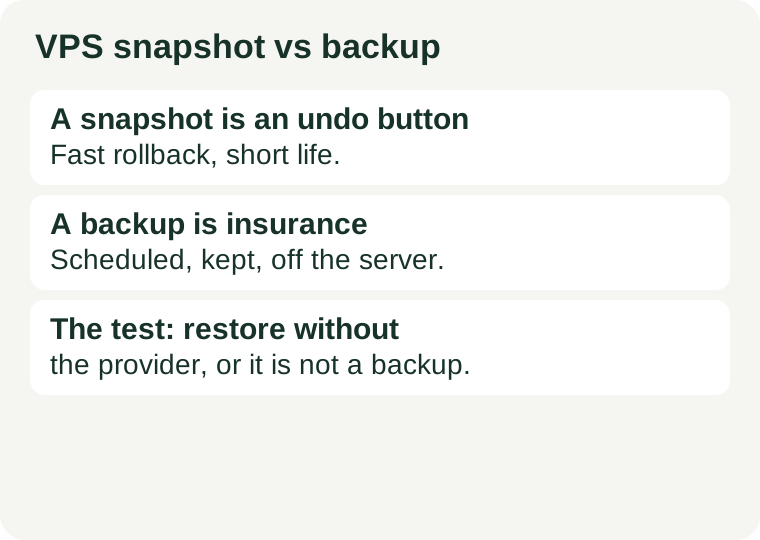
Use a snapshot before a risky change, and a scheduled backup for everything else. A snapshot saves the state of your disk at one moment: you take it by hand, right before an operating-system upgrade, a kernel change, or a big configuration edit, and you delete it once the change proves itself. A backup runs on a schedule you set, keeps several copies according to your retention rules, and protects you from problems you only notice later — a bad update spotted after a week, a database row deleted by mistake, a server that no longer boots.
The difference is not the quality of the copy. It is the failure domain. A snapshot usually sits on the provider's storage platform, often in the same region as the server it came from, and always inside the same account. One event can take the server and its snapshot together: the account is suspended, a payment fails, someone deletes the instance — and on many providers deleting an instance deletes its snapshots with it — or the whole region has a bad day. A backup that is kept independently of the original server survives all four. The decisive question is not what your provider calls the feature. It is this: if your provider account stopped existing this afternoon, what could you still restore, and where would you restore it?
1. What a snapshot is — and what it is for
A snapshot is a point-in-time copy of a VPS disk or volume. Its job is to give you a quick way back after a change goes wrong. Take one immediately before a high-risk change, and if the server fails to boot or the application stops working, roll the whole disk back to that moment. Creation is near-instant and a rollback typically takes minutes, which is why nothing else restores faster.
A rollback is also total. Reverting returns the entire disk to the snapshot moment, and everything you changed after that moment is lost — files, database rows, configuration edits, all of it. So a snapshot is a safety net with a short life: take it, make the change, verify the change works, then delete it. An old snapshot is a stale moment, not a history, and keeping one for months is not a retention policy — it is a forgotten copy that may also be counting against your plan's snapshot limit.
Two limits to check on your provider's documentation before you lean on snapshots. First, the plan limit: most providers cap how many snapshots you can hold and how large they can be in total, and when you reach the limit you cannot create a new one until you delete an old one. Second, the restore scope: a whole-disk snapshot usually restores the whole disk. Recovering one deleted file from it may mean attaching a restored volume to another instance and copying the file out by hand — if your provider allows that at all.
2. What a backup is — and what it is for
A backup is a recovery copy managed as an ongoing process, not a single action. It has a schedule, retention rules, and a documented restore procedure, and — the part that matters — it is kept independently of the original VPS, so it can still be recovered if the host, the storage domain, the account, or the primary data is lost. A backup can be a complete system image, a volume-level copy, an application-aware backup, or a combination. Some providers' “backup” feature is really a snapshot under another name, so verify the implementation rather than trusting the label: ask where the copy is stored and what failures it covers.
Backups protect against the slow problems snapshots cannot see. A bad update you notice a week later is past the snapshot you deleted on the day of the update. A database table emptied by a script is a file-level problem a whole-disk rollback would fix only by also erasing a week of good work. And a provider-side failure — a host that dies, a region that goes dark, an account that is closed — is exactly the case where the snapshot stored inside that same account is gone too.
That is why a backup is slower to restore. Rebuilding a machine first and then restoring the data takes longer than rolling back a disk in place, and a backup that has never been restored is only a hope. Our backup restore test walks through the three levels — list and open, single-file restore, full staging rebuild — and what counts as a pass. Run it before you need it, on staging, never on the live site.
3. The five-point check before you rely on a snapshot
Read your provider's documentation for each point and write the answers down with the date. Providers use the words “snapshot” and “backup” differently, and the panel label is not the answer.
- Where does the copy live? Same host, same region, same account — or stored off the host, on separate infrastructure? A copy that shares the server's failure domain is a rollback tool, whatever the panel calls it.
- What happens when the instance is deleted? On many providers, deleting an instance deletes its snapshots with it. If that is your provider's behaviour, a snapshot cannot protect you from an accidental or malicious deletion — only an off-provider backup can.
- How long is it kept, and who deletes it? A snapshot you took by hand has no retention rule unless you manage it yourself. A backup has a schedule and a retention count. If nobody is responsible for keeping the copy current, the copy is stale.
- Can you restore part of it? Ask whether you can restore a single file or a single database table, or only the whole disk. A whole-disk-only restore is a blunt instrument: it can fix a broken upgrade, but it cannot recover one deleted file without erasing everything newer.
- Can you restore it somewhere else? If the answer is no — if the snapshot can only roll back the same instance — then it is not portable, and it is not a backup. A backup is a copy you can move and rebuild from on another machine.
If any answer is “I don't know”, that is the finding. Do not assume the generous answer; the generous answer is the one providers advertise and the one that fails during an outage.
4. The database warning: a running snapshot can restore broken
A snapshot copies the block device as it is at one instant. It does not ask your applications to stop first, and it cannot see anything still sitting in memory waiting to be written. So the image is crash-consistent at best: it looks exactly like the disk would look if someone had pulled the power cable. For a static website that is usually fine. For a database it may not be.
A database caught mid-write can come back needing recovery, and if your data spans two volumes — a root disk and a separate data disk snapshotted at different instants — the data files and the log directory can disagree, leaving recovery with nothing correct to replay. The fix is cheap: write a database dump to disk before you take the snapshot, so the restore has a consistent copy to fall back on. Powering the server down first also works, where downtime is acceptable. Either way, test the restore — a snapshot you have never restored is a guess about a database, and a database is the part you can least afford to guess about.
5. The setup that covers both failures
Use both, for different jobs, and keep one copy outside the provider:
- Snapshots before every significant change. Take one, make the change, verify it, delete the snapshot when the change is proven. Fast undo, short life.
- Scheduled backups, every day, with retention. Daily is the usual floor for a site that changes; set how many copies to keep, and let the schedule run without anyone having to remember.
- One copy outside the provider. A regular dump of the database and the files that matter, copied to your own machine or to storage another provider controls. That is the copy that survives the account, the region, and the provider itself. Three copies of important data, on two kinds of storage, one of them off the platform — the old 3-2-1 rule still holds, because it is a rule about failure domains, not about tools.
Before you buy a plan on the strength of its snapshot or backup feature, check the same things you would check before any purchase: the refund window, what happens if the service stops, and whether the price in the second year is the price you budgeted for. Our refund-window check and stopped-VPS billing check cover the two that surprise people most often, and how to choose your first VPS settles the maintenance responsibilities — including who restores the backup — before you need them.
Red flags to note before you rely on a snapshot
- “Snapshots included” quoted as backup. A plan that advertises snapshots is advertising fast rollback, not disaster recovery. Ask where the copy lives before you count it as a backup.
- A snapshot older than the change it was meant to cover. If the snapshot predates a week of work, rolling back to it erases that week. Delete snapshots once their change is proven, and let backups carry the history.
- No dump before a database snapshot. A crash-consistent image of a busy database is a hope, not a copy. Dump first, snapshot second, test the restore third.
- One copy, one provider, one account. If every copy of your data dies with the same account, you have one copy, not three. The off-provider copy is the one that turns a rollback tool into a recovery plan.
- A restore nobody has ever run. The panel saying “backup successful” proves the job ran, not that the copy works. Restore it on staging and time it — that is the only pass that counts.