 KIKOMONO
The short answer
Judge a free PDF editor by what it lets you save, not by what it lets you open. Before the real edit, take a copy of your document, run the exact edit you need on it, and save the result. If the save is blocked, stamped, capped or counted against a daily allowance you have already spent, you have learned it in five minutes — and you can still switch tools, split the job, or accept the limit knowingly instead of discovering it on the finished document.
1. First, decide what “done” means for this document
A limit only matters against a delivery target, so write the target down before you open an editor:
- What edit do you actually need? Changing existing text, adding a signature, merging files, compressing a scan and converting to Word are five different features, and free tiers rarely include all of them. An editor that merges beautifully may not edit a single word for free.
- How big is the file? Note the page count and the megabytes. A 200-page scanned report and a two-page form live under different caps.
- Who will receive it? A form for yourself, a contract for a client and a document with identity details have different standards. A watermark that is tolerable in a draft is not tolerable in a client delivery, and a file with personal data should not be uploaded to a server you have not checked.
The same “start from the destination” logic applies to other finished files: our export check for free video editors makes the same point for video — check the file you will actually send, not the preview inside the tool.
2. Run the five-minute test on a copy
Do this before the real edit, in the account and version you will actually use. Free terms differ by account, platform and version, so a friend's clean save is not evidence about yours.
- Copy the document. Never test on the original. Keep the original untouched so a failed test costs nothing.
- Run the exact edit. Use the same tool the real job needs — edit text, merge, compress, sign — not a different tool that happens to be free.
- Save and open the result. Check the whole file: every page, the file size, and whether the text you changed is really changed. A preview that looks right is not a saved file.
- Record the result. Note the editor, the account type, the date and what the test showed. Free tiers change, and a note from today stops a changed limit from silently overwriting your decision later.
If any step is blocked — no save without payment, no save at your file size — that is also a result. It tells you the free tier does not cover this job, and it tells you before you have invested the editing time.
3. The five limits, and how to check each one
| Limit | What to look for | What it means |
|---|---|---|
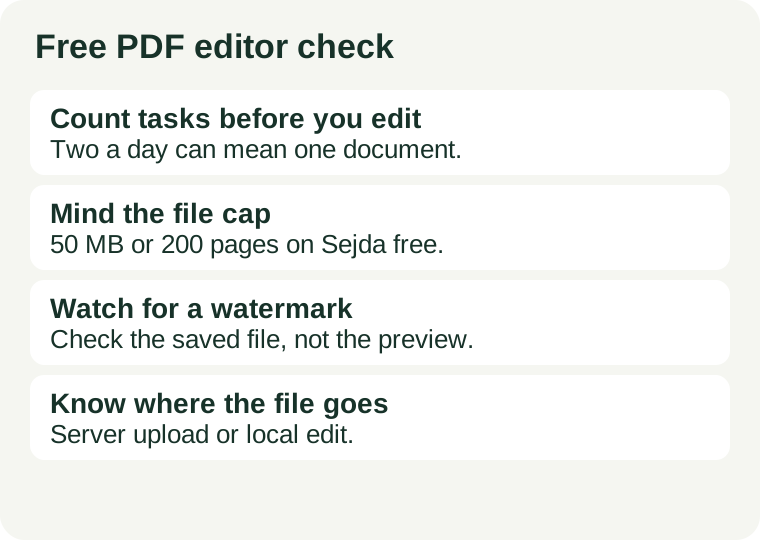
| Task cap | A daily or hourly allowance on the plan page, and a counter that falls with each tool run | Each tool run is one task. Merging, then compressing, then protecting one document is three tasks, and can use up a whole day on a two-task plan |
| File and page cap | A maximum file size and page count on the tool page | A scanned book or a long report can exceed the cap before you start. Check the cap against your file, not against a demo document |
| Watermark or stamp | A logo or text on the saved file, on every page or on some pages | The free tier stamps saved files. A clean delivery needs a different editor or a paid plan, and cropping a stamp out of a PDF rarely works |
| Feature paywall | The exact edit you need greyed out, or offered only after an upgrade prompt | Editing existing text, OCR on scans and batch work are the usual paywalled features. An editor that annotates for free may not edit for free |
| Where the file is processed | Whether the tool uploads your file to a server, and how long the vendor keeps it | An online tool processes your file on its servers. A desktop tool keeps it on your machine. For sensitive documents, that difference matters more than the price |
One limit does not condemn an editor and one clean test does not clear it forever. A test save proves the save for the edit and settings you tested, on the day you tested them. If the real document adds a new feature or a bigger file, test that too.
4. Three editors, checked 2026-11-06
Three tools that cover the usual cases, with the limits as stated on their own pages. Free tiers change, so treat these numbers as a starting point and read the plan page on the day you edit.
Sejda: the countable one — 3 tasks an hour, no watermark
Sejda's free web tools allow three tasks per hour on files up to 200 pages or 50 MB, with OCR limited to 10 pages, and put no watermark on the output. No sign-up is required. Its free desktop app allows three tasks per day under the same size and page caps. Uploaded files are deleted from Sejda's servers after two hours. Paid passes lift the caps: a Web Week Pass costs $5 for seven days, Web Monthly $7.50 a month, and Desktop plus Web Annual $63 a year. Official editor page.
This is the only free plan of the three where you can do the division before you start: three tasks an hour, divided by the tool runs your document needs, tells you whether one document fits in one hour.
Smallpdf: polished, but two tasks a day
Smallpdf's free plan allows about two tasks a day, shared across all its tools, so compressing one file and merging another uses up the day until the counter resets. Editing existing PDF text requires its Pro plan, which runs around $9 to $12 a month depending on billing and region. The interface is polished and the tools are reliable, but the daily cap is the wall most people hit first. Official pricing page.
PDFgear: genuinely free, and mostly offline
PDFgear states its desktop editor is totally free, with no sign-up, no ads and no watermark on saved files, and that most editing runs locally on the computer — only its AI features, online services and updates need a connection. It runs on Windows, macOS, iOS and Android, with browser-based tools for the rest. The trade-off is uneven quality: independent reviews rate the desktop app as the strongest experience and the web tools as slower, with some features missing in the browser. Official site.
For a sensitive document, PDFgear's desktop route is the useful one: the file never leaves your machine for the edit itself. For a quick merge on a shared computer, its web tools are the fallback, and then the same upload-and-retention question applies as with any online tool.
5. When free is enough
A limit is not automatically a reason to switch. Free is enough when you decided it in advance: a one-off form under the caps, a merge of two small files, a draft for internal review. What is not enough is discovering the cap on the finished document, when the only fixes are paying under deadline pressure or rebuilding elsewhere. The five-minute test exists to move that discovery to the cheapest possible moment — before the work, not after it.
If the document is sensitive, add one more rule from our privacy check before uploading: do not upload identity documents, customer records or confidential work merely to test a tool. And if the file is a scan, read our scanned PDF to text guide first — the text layer has to exist before any editor can change it.
Reviewed 2026-11-06. Free tiers and trial terms change; the editor's own plan page and the save panel on the day you edit are authoritative.