 KIKOMONO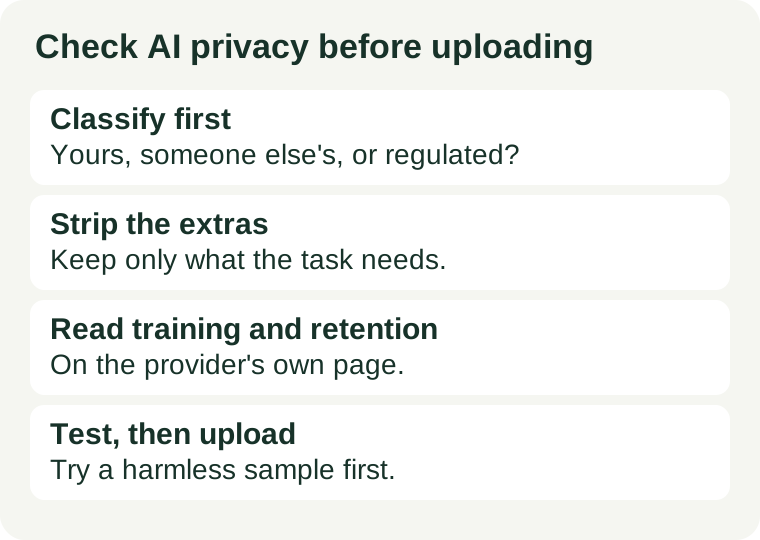
The short answer
Uploading is the point of no return in most AI workflows: once a file leaves your device, you cannot control every copy the provider, its processors or its reviewers may hold. So the check happens before the upload, in this order: task, then tool, then check. First decide what the task actually needs from the document. Then choose a tool and an account whose published handling fits that document. Then prove the route with a sample that would not matter if it leaked. Only then upload the real, redacted copy — and keep a one-line record of what you uploaded, where, and what you stripped.
This guide gives you a routine, not a verdict on any provider. Privacy pages, training settings and retention periods change, and they differ between a personal account and a work or school account on the same service. The provider's current page for the exact account you are signed into is the only authority that counts.
Step 1: Classify the document before you open any tool
Ask four questions about the file, in order. Stop at the first one that says no.
- Is it yours to share? If the document belongs to a client, an employer, a student or another person, you need their permission or an approved tool — not just a helpful answer. Other people's secrets stay out unless sharing is explicitly allowed.
- Would exposure cause harm? Names, addresses, account numbers, signatures, photographs, dates of birth, reference numbers and medical or financial details all count, and so do combinations: a school name plus a rare incident can identify a student even after the name is removed.
- Is it regulated or confidential work? Client files, unpublished research, internal company material and regulated records are not routine uploads. For those, the correct response may be to stop and get approval, not to complete a checklist faster.
- Can the task be done with less? A rewrite needs a paragraph, not a whole contract. A table check needs the rows in question, not the full workbook. If a summary or an anonymised extract answers the question, upload that instead of the original.
If the document passes all four, it is a candidate for upload — not yet an approved one. The next steps decide whether the tool and the copy are fit for it.
Step 2: Strip everything the task does not need
Make a working copy and remove identifiers from the copy, never from your only original. Replace names with roles (Organiser, Reviewer A), replace account and reference numbers with a label such as REFERENCE-REDACTED, and delete signatures, photographs and free-text notes that are not part of the question. Check the whole file, not just the visible page: comments, tracked changes, document metadata, filenames and anything visible in a screenshot background can all carry identifiers.
Covering text is not the same as removing it. Drawing a black shape over words in a PDF, or pasting a screenshot with a blur, can leave the underlying text recoverable. Use a proper redaction tool for important documents, then reopen the redacted copy and search it for the removed values before you upload. If a value is still searchable, the redaction failed.
Keep a short note of what you removed, in general terms only — for example, “names replaced with roles; account numbers removed; file renamed”. Do not write the removed values into the note. That note is what lets you, or a colleague, tell later whether the uploaded copy was the safe one.
Step 3: Read the provider's own pages — four questions, no guessing
Open the privacy policy and the data or training settings for the exact service and account you will use. A familiar logo does not tell you which contract applies: personal, work and school accounts on the same brand can differ. Look for clear answers to these four questions, and write down “unanswered” where the page does not say:
| Question | What a clear answer looks like | If it is unclear |
|---|---|---|
| Training use | Whether prompts and uploads are used to train or improve models, and whether an opt-out exists and is on by default. | Assume training use is possible until the page says otherwise. |
| Retention | How long uploads are kept, in days or months, not just “as long as needed”. | Assume indefinite retention; prefer a shorter-lived route. |
| Deletion | Whether you can delete the conversation and the upload, and whether deletion removes stored copies within a stated window. | Do not assume deleting a chat deletes the upload. |
| Who else sees it | Which processors, reviewers or connected apps can access the content, and what sharing controls exist. | Limit connected apps to the minimum the task needs. |
Watch for vague phrases. “Improving the product” often signals that inputs may be reviewed or used in development. “Aggregated and anonymised” does not guarantee that a distinctive document cannot be recognised from its pattern. A setting that stops training use does not, by itself, answer the retention or deletion questions — check all four separately. If the page gives no answer and the document matters, choose another route: a local tool, a summary written by you, or an approved account whose terms you can read.
Step 4: Test the route with a harmless sample first
Before the real file, send a sample that would not matter if it leaked. The sample below is invented practice material — use it, or one like it, for the test:
Invented sample: a community reading-group note. Organiser: Role A. Venue: a public library room. Budget: 120 USD for refreshments. Question for the tool: turn this note into a three-bullet announcement, keeping the budget figure and the venue type exact.
Run the full route on the sample: upload, get the answer, export it if you need an export, then delete the conversation and the upload through the provider's own controls. Check that the exported result is the one you will actually use, and that the deletion step you found covers the upload as well as the chat. Our export check covers the reopen-and-edit part of that test, and our PDF preparation guide covers making document text readable before any upload.
Only when the sample route works end to end — upload, answer, export, deletion — should the real, redacted copy go through the same route, in the same account, with the same settings. Changing account, tool or settings after the test voids the test.
When a check fails, change the route — not the standard
- Permission missing: do not upload. Ask the owner, or rewrite the question so it needs no private material at all.
- Training or retention unanswered: use a local or offline tool, or send only a summary with identifiers already removed.
- Deletion unclear: treat the upload as permanent. If the document cannot live with that, do not upload it.
- Tool demands the original: that is a tool-fit signal. A tool that cannot work from a redacted extract is the wrong tool for a sensitive document, not a reason to send the original.
After a successful upload, finish the job the same way: use only the checked output, keep the upload record with the result, and delete the uploaded copy when the task no longer needs it there. Deleting on schedule matters more than deleting perfectly — a copy you meant to delete and forgot is the most common leak.
Questions before you upload
Does “no sign-up” mean my upload is private?
No. No sign-up describes how you enter the tool, not what happens to the content afterwards. Training use, retention and deletion still depend on that service's published terms. See what “no login” really means.
Does removing names make a document anonymous?
Not by itself. A combination of details — a workplace, a date, a rare condition, a distinctive incident — can still identify a person. Replace identifiers with roles, generalise distinctive details where the task allows it, and check the redacted copy as a whole before uploading.
Does deleting the chat delete the upload?
Not necessarily. Chat history, stored files and training data can have separate controls and separate retention periods. Follow the provider's deletion page for the upload itself, and record what you deleted and when.
Can I upload a meeting recording the same way?
Only with the same checks, plus consent to record and share from everyone in it. Verify the summary against the recording before sharing it, as in our meeting-summary check. If consent or the retention answer is missing, keep the recording local.
Check commercial use before publishing AI output · Check an exported result before using it · Prepare readable PDF text
Reviewed 2026-10-29. The sample note and checklist are our practice material. Product handling comes from each provider's own published pages for the account in use, not from this guide. This guide has no affiliate links.