 KIKOMONO
The short answer
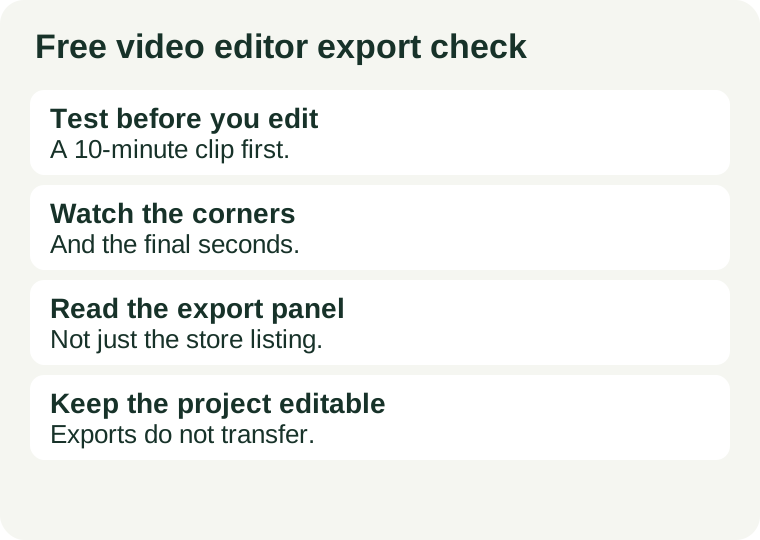
Judge a free video editor by its export, not by its feature list. Before the real edit, make a 30-second test clip with the same kinds of material the real video will use, export it at the settings you intend to deliver, and watch the whole file on full screen. If the test export carries a mark, a forced end-card, a lower resolution than you need or a length cap that cuts your video short, you have learned it in ten minutes — and you can still switch tools, drop one paid asset, or accept the limit knowingly instead of discovering it on the finished video.
1. First, decide what “finished” means for this video
An export limit only matters against a delivery target, so write the target down before you open an editor:
- Where will it play? A social clip, a client file and a classroom handout have different expectations. A corner mark that is tolerable in a practice edit is not tolerable in a client delivery.
- What resolution and length do you need? If the destination needs 1080p and a ten-minute cut, a free tier that exports at a lower resolution or caps length is a mismatch no matter how good the timeline feels.
- Whose material is in it? Your own footage, a template, a stock clip and library music are four different cases. Limits often attach to the asset, not to the editor as a whole, so a clean export of plain footage says nothing about a template-heavy edit.
The same “start from the destination” logic applies to other finished files: our export check for AI results makes the same point for documents and tables — check the file you will actually send, not the preview inside the tool.
2. Run the 10-minute test export
Do this before the real edit, in the account and version you will actually use. Free terms differ by account, platform and version, so a friend's clean export is not evidence about yours.
- Build a 30-second clip. Include a title, one transition, and one effect or template element of each kind the real video will use. Add music if the real video will have it.
- Export at delivery settings. Use the resolution, frame rate and format you intend to deliver, not the editor's default. A limit that only appears at your target settings is still a limit.
- Watch the whole file on full screen. Check the corners for a mark, watch to the very end for an appended end-card, and listen through the audio. Skimming the middle misses exactly the places marks hide.
- Record the result. Note the editor, the account type, the date and what the test export showed. Free tiers change, and a note from today stops a changed limit from silently overwriting your decision later.
If any step is blocked — no export without payment, no export at your resolution — that is also a result. It tells you the free tier does not cover this job, and it tells you before you have invested the editing time.
3. The five traps a test export catches
| Trap | What to look for | What it means |
|---|---|---|
| Watermark | A logo or text in a corner of the picture, on every frame or on some frames | The free tier stamps exports; a clean delivery needs a different editor or a paid plan |
| End-card | An extra branded clip after your last frame | Delete it from the timeline if the editor allows it, and export again — a preview alone will not show whether it is really gone |
| Resolution cap | The export panel offers less than your delivery target, or downgrades it at export | The editor cannot deliver this video on its free tier, whatever the editing experience felt like |
| Premium-asset stamp | Only the section using a template, effect or stock clip carries a mark | Drop that one asset and re-export; the rest of the edit may be clean |
| Length, count or storage cap | A maximum export length, a weekly export count, or a project that expires | Check it against the real video's length and your deadline, not against a demo clip |
One trap does not condemn an editor and one clean test does not clear it forever. A test export proves the export for the assets and settings you tested, on the day you tested them. If the real video adds a new template or a longer cut, test that too.
4. Read the export panel, not the store listing
“Free” describes at least three different things, and the store listing rarely distinguishes them clearly:
- A free tier of a paid product, with limits that live in the plan comparison page.
- A time-limited trial, where exports may be stamped or shortened until you pay.
- A fully free editor with no paid tier to push, where there is no commercial reason to stamp an export.
Read the plan page for the exact account you hold, then confirm it in the export panel itself: the available resolutions, the watermark notice if any, and the export length. If the page and the panel disagree, believe the panel — it is the thing that will produce your file. Free terms change, so re-check on the day you start a video that matters, not on the strength of a review from months ago. The same caution applies to assets: before publishing a video that uses library music, stock footage or a template, check that asset's own terms, as our free AI commercial-use check explains for AI-generated material — “free to use in the editor” and “free to publish” are different permissions.
5. Keep the project editable, whatever the test shows
Never treat the test export as the project. Keep the original clips and the project file, and edit from those; an exported video recompressed a second time loses quality and cannot be cleanly re-edited. Project files also rarely transfer between editors, which is a second reason the test comes first: switching editors after a full edit usually means rebuilding the timeline, not importing it. Our transcription workflow follows the same discipline for recordings — preserve the original, work on a copy, and check the result against the source before it becomes the record.
6. When a limit is acceptable
A limit is not automatically a reason to switch. It is acceptable when you decided it in advance: a practice edit, a draft for internal review, or a short clip where the free tier's resolution and length already cover the delivery target. What is not acceptable is discovering it on the finished video, when the only fixes are paying under deadline pressure or rebuilding elsewhere. The test export exists to move that discovery to the cheapest possible moment — before the work, not after it.
Reviewed 2026-11-02. Free tiers and trial terms change; the editor's own plan page and export panel on the day you edit are authoritative.