 KIKOMONO
Why AI image text goes wrong
An image model does not write. It paints a picture of writing. During training it has seen millions of images with letters in them, but it never learned spelling the way a word processor does — it learned what lettering tends to look like. That is why the errors have a particular shape: a doubled letter (BIRTHDAAY), a missing letter (COFEE), a plausible-looking word that is not a word at all, or a background sign carrying text you never asked for.
The makers say so themselves. OpenAI's image generation guide lists text rendering as a limitation: although significantly improved, the model "can still struggle with precise text placement and clarity." Google's prompt guide for its Imagen models suggests keeping text to 25 characters or fewer, in no more than three phrases. Both statements point the same way: short, large, high-contrast words are the strong case, and long or exact strings are not.
Three things make an error more likely. Length: every extra character is another chance to wobble, and a paragraph, a price grid or a legal line is where letters go wrong. Exactness: a headline can survive a near-miss, but a price, a date, a URL or a phone number cannot — one wrong digit is a wrong fact, not a typo. And size and script: small text is the first casualty, and non-Latin scripts and handwriting or script typefaces thin out the letterforms first. If your image has any of the three, the check below is not optional.
The five-minute check before you publish
Run this on the exported file you will actually publish, not on the generator's preview and not on a thumbnail:
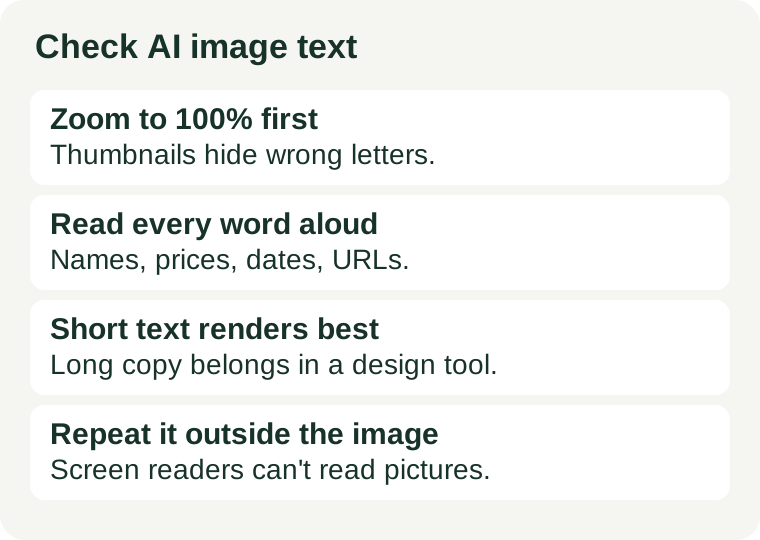
- Zoom to 100% and read every word aloud. Never sign off on a thumbnail — a billboard mockup at 30% zoom hides letter-level mistakes completely. Reading aloud forces you to process each letter instead of skimming past a word that merely looks right.
- Check the exact-value fields digit by digit. Product names, prices, dates, web addresses and phone numbers get compared character by character against your approved copy — never retyped from memory, and never trusted because the rest of the image looks right. Copy the approved wording from the document it lives in, not from the picture.
- Hunt for text you never asked for. Background signs, labels, book spines and packaging are where invented lettering hides. If a sign says something, it counts as published text even if it was never in your prompt.
- Check it small and check the export. View the image at phone size, where most readers will meet it, and reopen the downloaded file rather than assuming the preview is identical — fonts can substitute, edges can soften and a layout can change during export.
- Repeat the key message outside the image. Screen readers cannot read words inside a picture, and people who need larger text or different colours cannot restyle them. Put the headline, price or date in the alt text, the caption or the surrounding copy as well. Our alt-text check covers how to write that part.
- Get a second pair of eyes for anything you cannot read. If the image carries a language or script you do not read, ask a fluent speaker to inspect the actual export. A model's transcription of its own image is not an independent approval.
When the text is wrong: three fixes
Do not start over with the same long prompt and hope the next roll is luckier. Pick the fix that matches how much text must be exact:
- Regenerate with less text. Shorten the wording to a few words, put the exact words in quotation marks, and say where they should sit. One or two words in a large, bold, high-contrast style is the case these models handle best.
- Ask for empty space, then add real text. Generate the artwork with a blank area where the words go, and set the headline, price or date in a design tool, in a real font. This is the only fix that guarantees exact spelling, and it is the right one for anything a reader will act on — a price, a date, a web address.
- Make one targeted edit. Ask for a limited change to the wrong patch only, and inspect the whole result afterwards, not just the corrected word. A narrow request can still change the illustration or move the layout, and if repeated attempts introduce new errors, stop and use the design tool instead.
Whichever fix you use, keep the original file and the approved copy. Correcting the words changes the lettering, not how the image was made: if a platform, marketplace, publisher or client requires AI-generated images to be disclosed or labelled, that rule still applies to the corrected version. And a corrected image still needs the five-minute check — the check is for the file you publish, not for the generation you liked.
Decide before you generate, not after
The cheapest version of this check happens before the first generation. Split the image into two jobs — artwork and information — and decide which words must be exact. Anything a customer will act on (a price, a date, a web address, a product name) belongs in real text, set by you. Anything decorative (a shop sign in the background, a label on a shelf) can be left to the model, and if it comes out wrong, the fix is to remove it rather than repair it.
That split is also what keeps the rest of your publishing checks simple. A watermark is a separate question from a misspelling — our watermark check covers it — and so is whether the image may be used commercially at all, which our commercial-use check covers. Spelling, watermark and licence are three different checks; passing one says nothing about the other two. For picking the generator in the first place, see Free AI tools for images.