 KIKOMONO
The short answer
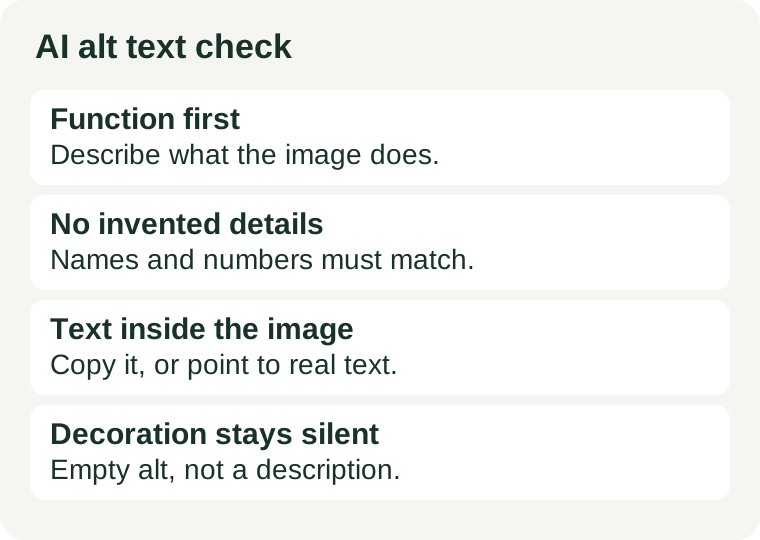
Alt text has one job: give a person who cannot see the image the same information the image gives everyone else. AI is good at the first draft of that job and unreliable at the rest. It sees objects, colours and scenes; it does not know whether the picture is the product, a link, a chart, or decoration. So treat every generated draft as unreviewed copy, not as a finished accessibility fix. The check below takes about five minutes per page, and it catches the four mistakes that matter: wrong function, invented details, text inside the image that was never transcribed, and decoration described instead of silenced.
1. What the rule actually requires — checked 2026-11-17
WCAG 2.2 Success Criterion 1.1.1, Non-text Content, is Level A — the minimum level. It states: “All non-text content that is presented to the user has a text alternative that serves the equivalent purpose, except for the situations listed below.” The key phrase is equivalent purpose, not equivalent description. The same photograph needs different alt text on a product page, in a news story, and as a link to a gallery, because its purpose changes. W3C: Understanding Success Criterion 1.1.1.
The criterion also names the exception that AI drafts get wrong most often: if non-text content is pure decoration, is used only for visual formatting, or is not presented to users, it should be implemented in a way that assistive technology can ignore it. In HTML that means an empty alt attribute, alt="". A screen reader then skips the image instead of announcing a description nobody asked for. A generator that describes every image it sees is not being thorough; it is adding noise.
2. Where AI drafts go wrong
Four failure modes cover almost everything a review catches. None of them is a reason to stop using AI for the first draft — each is a reason to check it.
It describes the scene, not the function. A photo of a person clicking a button in a screenshot becomes “person using a laptop” when the image is really the “Save settings” step of a tutorial. The pixels are described correctly and the purpose is lost. Function decides the text, not the scene.
It invents details. A fluent draft can name a brand, a place, a number or a word that is not in the image at all. Models predict plausible words; they do not verify facts. Names, figures and any text the model claims to read inside the picture are the first things to check, because they are the claims a reader cannot verify by listening.
It misses text inside the image. Infographics, screenshots, charts and quote graphics carry their meaning as baked-in text. A draft that describes the layout and skips the words has described the frame and lost the content. If the words matter, they belong in the alt text or in real text next to the image.
It describes decoration. Dividers, background flourishes, spacer graphics and repeated icons get full-sentence descriptions from a generator that was never told the image is decorative. Every such sentence is a small interruption for a screen-reader user, multiplied across the page.
3. The W3C decision tree in sixty seconds
The W3C Web Accessibility Initiative publishes a short decision tree for exactly this judgement, and it is the fastest way to make the call consistently, image by image. Walk it in order. W3C WAI: An alt Decision Tree.
- Does the image contain text? If the text is also present nearby as real text, or is only there for visual effect, use an empty
alt. If the image is a link or button, thealtshould communicate its function. If the text appears nowhere else, include it in thealt. - Is the image a link or a button? If removing it would make the link or button hard to understand, the
altshould name the destination or the action — “Smallville Times home page”, not “newspaper front page”. - Does the image contribute meaning to this page? A simple graphic or photograph gets a brief description that conveys that meaning. A graph or complex image needs its information elsewhere on the page, in text or a table. If the image only repeats real text nearby, use an empty
alt. - Is it purely decorative? Use an empty
altattribute. If none of the questions above gives a clear answer, the decision tree itself says it does not cover all cases — read the full Images Tutorial for that image rather than guessing.
4. The five-minute check before you publish
- Decide decorative or informative first. Before reading any draft, ask what the image does on this page. If removing it would change nothing, it is decorative: empty
alt, no description, no matter how good the draft sounds. - Read the draft with the image hidden. Cover the picture and read only the alt text. Does a listener learn what the image was for? If the sentence could describe a hundred other images, it is too generic; rewrite it for this image on this page.
- Verify every name, number and quoted word. Check each specific claim in the draft against the pixels. If the image contains words, read them letter by letter — prices, dates, product names and web addresses included. A wrong digit in alt text is worse than a missing one, because the listener has no image to correct it against.
- Cut the filler. Remove “image of”, “picture of” and keyword stuffing; screen readers already announce that it is an image. One sentence is enough for most informative images. Match the alt text to the language of the page.
- Check functional images for the action. Buttons, linked thumbnails and icons need alt text that names what happens when you use them, not what they look like. A linked logo says where the link goes; a search icon says “Search”.
- For charts and diagrams, move the data out of the image. Alt text should carry the takeaway — “Sales rose from June to August, peaking in August” — while the figures live in a table or nearby text that everyone can read, search and copy. A long alt paragraph is a poor substitute for a data table.
One more habit is worth keeping: check the exported page, not just the editor. Alt text can be lost when an image is re-uploaded, replaced, or moved between a CMS and a static export. Open the published page, inspect the image, and confirm the alt attribute is the one you approved.
5. What good looks like
Four ordinary cases, each decided by purpose rather than appearance. The wording is illustrative; the rule behind each one is the decision tree above.
- Product photo:
alt="Red cotton T-shirt, front view"— what the buyer needs to know, not a description of the studio lighting. - Linked logo:
alt="Smallville Times home page"— the destination, not “newspaper front page”. - Decorative divider:
alt=""— nothing to announce, nothing to skip past. - Bar chart:
alt="Sales in June, July and August, rising each month", with the monthly figures in a table beside the chart — the takeaway in the alt text, the data where it can be read.
Alt text is one of the cheapest accessibility fixes on a page, and AI has made the first draft nearly free. The cost that remains is the review — five minutes, one image at a time, judged against what the image is for. A draft that passes that check is worth publishing. One that was never checked is a guess with a confident tone.
Two companion checks in this series cover the image itself rather than its description: check an AI image for a watermark before publishing it, and how free AI image credits actually work. Our free AI tools for images guide covers which tools generate the images these checks apply to.