 KIKOMONO
The short answer
Memory is not a transcript of everything you said. It is a selection: the chatbot keeps the preferences and details it judges relevant — your name, how you like answers formatted, a project you keep coming back to — and uses them to shape later answers. That selection is the risk and the convenience at once: the same mechanism that saves you repeating yourself can also carry a phone number, a health detail, or a client’s name into a chat where it does not belong. The check takes five minutes, and it has three parts: ask what it remembers, read the settings page, and delete anything that should not be there — from every place it lives, not just the chat where you typed it.
1. What ChatGPT remembers — checked 2026-11-15
OpenAI’s help page says that when Memory is enabled, ChatGPT can remember relevant preferences and details from your chats and other available sources, so you can pick up where you left off instead of repeating yourself. Those sources can include past chats, saved memories, custom instructions, saved files in Library or Space, and content from connected apps such as Gmail, depending on your plan and region. The controls live under Settings → Personalization → Memory, and they can vary by plan, region, platform and workspace — if a setting described here is not visible, it may not be available for your account yet. OpenAI’s memory help page.
There are two different kinds of remembering, and they delete differently. Saved memories are details you explicitly ask ChatGPT to remember, or that it saves as useful context; they are stored separately from chat history, so deleting the original chat does not automatically delete a saved memory. Reference chat history lets ChatGPT draw on relevant information from past conversations; if you turn it off, information remembered from past chats is scheduled for deletion from OpenAI’s systems within 30 days, while the original chats remain unless you delete them. Turning off Reference chat history does not delete your saved memories, and turning off Reference saved memories also turns off Reference chat history.
To see what ChatGPT remembers, open the memory summary in the same settings page: it is a high-level view of information ChatGPT may use, and it does not necessarily include every detail or source. You can also simply ask ChatGPT what it remembers about you, and check the Sources shown under a response, which can name the past chat, saved memory, file or connected email that shaped it. When a detail is wrong, correct it in the summary or in the chat; when you want it gone, delete it from the summary or the saved-memory list — and then delete the chat where you first shared it, because a saved memory survives the chat it came from.
2. What Gemini remembers — checked 2026-11-15
Google’s help page says Gemini can learn from your chats to understand more about you and your world, and that it may suggest topics or tools based on previous conversations. Memory has three requirements: you must be 18 or over, signed in with a personal Google Account — it is not available on work, school or supervised accounts — and have Keep Activity on, because memory reads the chats saved in your Gemini Apps Activity. The toggle lives under Settings & help → Personal Intelligence → Memory. For now it works in the Gemini mobile app, the web app at gemini.google.com, Gemini in Chrome where available, and on a smartwatch — but not in Gems or Live chats. Google’s Gemini memory help page.
Gemini also has a second, separate store: Instructions for Gemini, facts and preferences you add yourself, which stay saved until you delete them. Unlike memory learned from chats, instructions are yours to edit one by one — add, edit or delete them from the same Personal Intelligence section. To check whether Gemini used your past chats in an answer, Google’s own advice is to ask it directly: “Did you use any info from past chats?” And to remove something Gemini learned from a chat, delete the chats that contain it from your Gemini Apps Activity: deleting the conversation stops Gemini drawing on it, though Google notes there can be a short delay. Google’s page on managing what Gemini remembers.
3. Three traps that catch everyone
Each of these is stated plainly on the official pages, and each is the opposite of what most people assume.
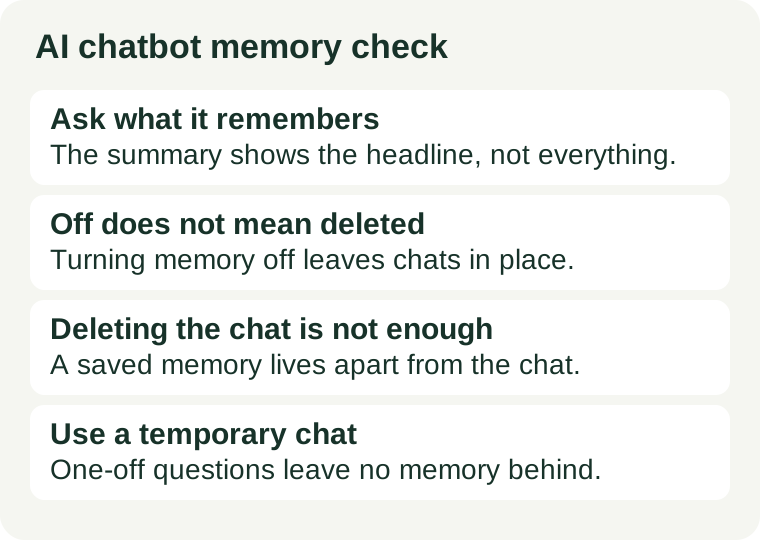
Turning memory off deletes nothing. On ChatGPT, turning off Memory does not delete your past chats — and if you turn it back on later, ChatGPT may create new remembered information from chats that remain in your history. On Gemini, turning Memory off stops future learning, but the chats themselves stay in your Gemini Apps Activity until you delete them. Switching a feature off is a pause, not an erasure.
Deleting the chat does not delete the memory. OpenAI says it directly: deleting a chat alone does not necessarily delete a separate saved memory created from that chat. Deleting a saved memory prevents it from being used in future personalization, but it does not remove mentions of that information from past conversations. To remove something completely, delete it from every place it lives: the memory summary, saved memories, regular and archived chats, saved files, and connected apps.
The summary does not show everything. ChatGPT’s memory summary is a high-level view and may omit details that are less relevant, unsuitable for the summary, or derived from sources that are not displayed individually. A clean-looking summary is not proof that nothing is remembered. The Sources shown under a response are the more honest check, because they name what actually shaped that answer.
4. The five-minute check before you share
Run this before you paste anything personal — a health detail, a financial number, a client’s name, an address — into a chatbot for the first time on that account:
- Ask what it already knows. In ChatGPT, ask “What do you remember about me?” and read the answer against what you actually told it. In Gemini, ask “Did you use any info from past chats?” after an answer that felt suspiciously well-informed. If it knows something you forgot sharing, that is the memory working as designed — and the reason to check before you share more.
- Open the memory settings and read them. ChatGPT: Settings → Personalization → Memory, then the memory summary and the saved-memory list. Gemini: Settings & help → Personal Intelligence, then Memory and Instructions for Gemini. Read what is listed, not what you assume is listed. Delete anything wrong, outdated, or sensitive on the spot.
- Delete from every place, not one. Removing a detail from the summary is not enough if the chat where you shared it still exists, and deleting the chat is not enough if the saved memory still exists. Do both, and check the other sources too: saved files in Library or Space, and connected apps such as Gmail. OpenAI says deletion can take time to propagate, and that it may keep logs of deleted saved memories for up to 30 days for safety and debugging — so do this before the sensitive detail exists, not after.
- Use a temporary chat for one-off sensitive questions. On ChatGPT, a temporary chat does not create or update memories, even with personalization on — though you can choose whether it uses existing memories, and you cannot change that choice after the conversation starts. Saving a temporary chat converts it to a regular chat, so do not save one that holds something you wanted forgotten.
- Decide what never goes in at all. OpenAI’s own page warns that sensitive information can appear in Memory if you share it with ChatGPT. If a detail would embarrass you, harm a client, or break a rule if it surfaced in an unrelated chat a month from now, it does not belong in any chat that has memory on. Our privacy check before uploading covers the same question for files and photos.
5. When to turn memory off entirely
Memory is worth keeping when the chatbot is your own working tool and the details it keeps are preferences, not secrets. Turn it off when the context changes: a shared device, a borrowed account, client-confidential work, health or financial details, or anything you would not want quoted back in a different conversation. On ChatGPT, the switch is Settings → Personalization → Memory; on Gemini, it is Settings & help → Personal Intelligence → Memory. Remember the first trap when you flip it: off stops new remembering, it does not erase the old. Run the five-minute check above first, delete what should not be there, and only then switch it off.
Memory is also a licence question in disguise. A chatbot that remembers your client’s project details can repeat them in a later chat, and a free plan’s terms decide what you may use the output for. Our commercial-use check walks through that side, and our free chat limits guide covers what the free tier rations before you build a workflow on it.