 KIKOMONO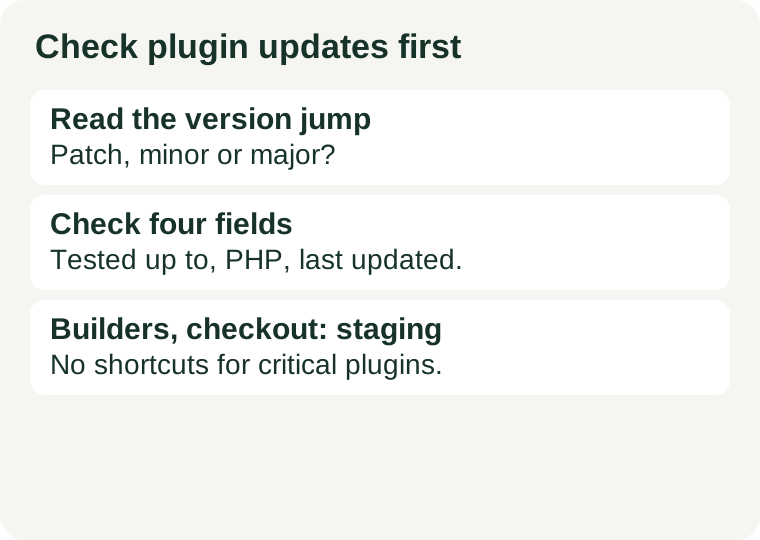
The short answer
Decide with three checks, in this order: the size of the version jump, four fields on the plugin page, and what the plugin touches on your site. A patch update from an actively maintained plugin that touches nothing critical can go to the live site after a backup. A major version jump, a plugin that has not been tested against your WordPress version, or a plugin that touches page building, checkout, caching, security or login goes to staging first, every time. If you cannot answer one of the three checks, that is itself a staging answer.
1. Read the version jump first
WordPress plugins generally use three-part version numbers: major, minor and patch. The part that changes tells you how much the developer changed, and therefore how much risk you are taking.
| What changed | What it usually means | Default route |
|---|---|---|
| Patch only (the last number) | Bug fixes, small corrections | Live after a backup, if the other checks pass |
| Minor (the middle number) | New features or improvements alongside fixes | Staging if the plugin is important to the site; otherwise live after a backup |
| Major (the first number) | Significant changes or restructuring | Staging, always |
A major jump is the one case where the changelog matters more than the version number alone. Read it for removed features, changed settings, new requirements and anything marked as a breaking change. If the changelog mentions a feature you rely on changing behaviour, test that exact feature on staging, not just the homepage.
2. Check four fields on the plugin page
Before updating, open the plugin's page in the WordPress plugin directory (or the developer's own page for a premium plugin) and read four fields against your own site.
Tested up to. This is the newest WordPress version the developer has confirmed the plugin works with. If your site runs a newer version than the one listed, the plugin may still work — but nobody has verified it. A gap of one version is a caution; a gap of two or more major versions is a strong sign that development has stalled, and the plugin belongs on staging until proven otherwise.
Requires at least. This is the oldest WordPress version the plugin supports. It matters when you are updating an old site: a plugin update can quietly require a newer WordPress version than the one you run.
Requires PHP. This is the minimum PHP version the plugin needs. A plugin update that requires a newer PHP version than your server runs will fail or misbehave, and the fix is a server change, not another plugin update. Check your server's PHP version in your hosting panel before updating, not after the error appears.
Last updated. A plugin updated recently, with a changelog that mentions your WordPress version, is a different risk from one untouched for a year. An unmaintained plugin is not automatically dangerous, but it is the least likely to get a fix if the update breaks something, so it earns a staging test and a search for an actively maintained alternative.
3. Ask what the plugin touches
Some plugins can break quietly in ways a homepage check will miss. If a plugin touches any of the following, it goes to staging regardless of how small the version jump looks: page builders and the block editor, store and checkout flows, caching and performance optimisation, security and login, and forms that collect visitor data. For these, the staging test must exercise the feature itself — edit a page with the builder, submit a form, walk through checkout — not just load the homepage and call it done.
Also check for duplicate jobs. Two plugins doing the same thing — two caching plugins, two security plugins, two contact-form plugins with overlapping features — are a classic source of conflicts, and an update to either one can expose the overlap. Keep one solution per job; removing the duplicate is often the fix that an update merely reveals.
4. The staging test, in one pass
On staging, update one plugin at a time. Updating several at once saves minutes and costs hours when something breaks, because you no longer know which update caused it. After each update, run the same short pass: load the homepage, edit and save one page, submit one form or complete one checkout step, log out and log back in, and check the error log for new entries. Clear the cache before judging the result — a stale cached page can make a broken update look fine or a good update look broken.
If staging is not available, the same discipline still applies on the live site, only slower and more carefully: update outside peak hours, one plugin at a time, with a backup ready and the same short test pass after each update. The absence of staging is a reason to be more careful, not a reason to skip the checks.
5. The live update order
When the checks say an update can go live, the order is: backup first, then update, then test, then clear the cache. The backup only counts if you know how to restore it — a backup you have never restored is a hope, not a plan. Our backup restore guide covers how to prove a restore works before you need one. If anything fails after the update, restore the backup instead of stacking fixes on a broken site, note the version that broke and the version you restored to, and test the update on staging before trying again.
For the wider picture, read our WordPress on a small VPS guide to understand what breaks first when traffic grows, and our first VPS guide before assuming a bigger server is the answer to a plugin problem. A plugin conflict is a software problem; a larger plan does not fix it.