 KIKOMONO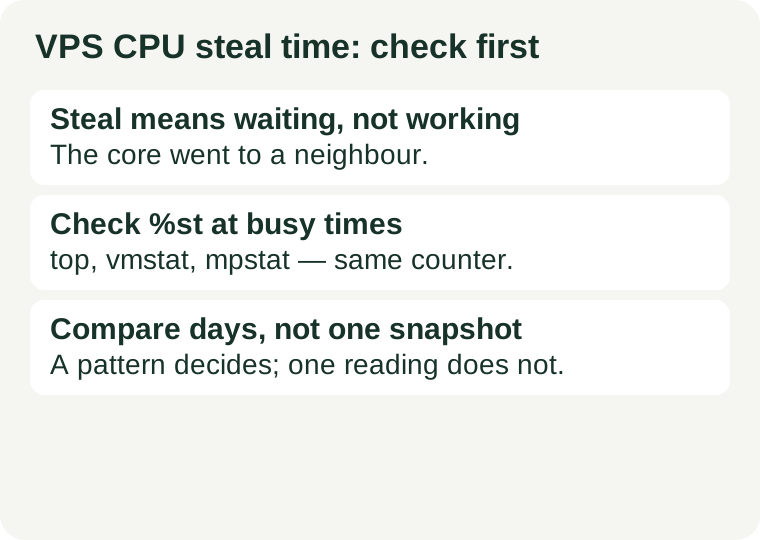
The short answer
On a shared VPS, your virtual CPU shares a physical host with other customers. CPU steal time is the time your virtual CPU was ready to run but had to wait because the hypervisor gave the physical core to someone else. You cannot recover that time, and no setting inside your server gets it back. Check it with the tools already on a typical Linux server: the st field in top, the st column in vmstat, or the %steal column in mpstat. Run the check under your real workload, repeat it at different times of day, and keep the results with timestamps. A single quiet-minute reading proves nothing; a pattern across busy hours is the evidence a support ticket or a move decision needs.
Do this check during the trial or money-back window, not after you have moved a live site onto the server. That is the whole point: steal time is a buying check, not a tuning trick.
What steal time is — and what it is not
Steal time is not total CPU use. A server can show high CPU use with almost no steal, which usually means the workload itself needs more CPU. A server can also show low CPU use with steal present, which means the wait is upstream, on the shared host, rather than in your own code.
Steal time is also not, on its own, proof that a provider broke a promise. Shared plans do not come with a published steal guarantee — no provider promises a steal figure on a shared plan — so there is no threshold in a sales page to hold them to. Treat the bands below as a reading guide for your decision, not as a specification the provider has violated.
One more caution: a steady 0.0 is good news, but it can also mean the platform does not report steal at all. If every reading is exactly zero even under heavy load, do not celebrate yet — check whether your own application's latency stays steady under load as a second signal, and ask support whether steal is reported on that plan.
Three ways to read the same number
These commands all read the same counter from the Linux kernel, so they should agree with each other apart from sampling time. Use whichever is installed; install nothing on a live site just for this check.
Check 1: top, the quick look
Run top and look at the %Cpu(s) line. The last field, st, is steal. This is the fastest way to see whether steal is present right now, but one screen of top is only a moment — it cannot tell you about last night's busy hour.
Check 2: vmstat, the short watch
Run vmstat 2 5 for five samples at two-second intervals. The st column is steal. Ignore the first line: it is an average since boot, not a current reading. The lines after it are the live samples that matter.
Check 3: mpstat, the per-core view
Run mpstat -P ALL 2 5 if the sysstat package is available. The %steal column shows steal per virtual CPU, which matters when one core is starved while others are idle. For a longer watch during a slow window, extend the sample, for example mpstat -P ALL 1 60 for sixty one-second samples.
How to read the numbers
Use these bands as a reading guide, not as a provider specification. Different guides draw the lines slightly differently, which is itself a reason to treat them as guidance for your decision rather than a verdict.
| Reading | What it usually means | What to do |
|---|---|---|
| 0–1% most of the time | Typical of a quiet shared host or a dedicated allocation | Nothing to chase; watch busy hours anyway |
| Brief spikes of a few percent | Normal scheduling noise; a neighbour's build or a host backup | Ignore single spikes; look for a pattern |
| 1–5% sustained on a shared plan | Expected contention on shared CPU; the price reflects sharing | Accept it if latency stays acceptable |
| 5–10% sustained | Measurable contention worth investigating | Record evidence across days; ask support about a node move |
| Above 10% sustained for hours | The plan is not behaving like the CPU you expected | Escalate: node move, dedicated CPU, or move provider |
The workload decides what "sustained" means for you. An overnight batch job can absorb high steal and nobody notices. A latency-sensitive service shows the damage in slow responses long before the average looks alarming. Judge steal together with the response time your users actually see, not as a number in isolation.
The trial procedure: four runs, not one snapshot
A shared VPS can look fine for thirty seconds at a quiet moment and collapse when neighbours get busy. Run the check as a small procedure, not a single command.
1. Baseline at idle. Record steal with the server doing nothing. This tells you whether the host is already contended before your workload starts.
2. Under your real workload. Run the workload you actually plan to host — your site, your build, your import — and record steal alongside it. A synthetic stress test on an empty server measures a different thing from your real traffic, and a stress test on a live site risks harming real visitors. Use your real job, not a maximum-load benchmark.
3. At different times of day. Repeat the same workload check in the morning and in the evening peak, and on more than one day if the trial allows. Numbers that barely move across days belong to a well-provisioned host; numbers that swing wildly between off-peak and peak belong to an oversubscribed one.
4. Keep the log. Save each run with its timestamp, the command, the workload running, and the latency you observed. A support ticket that says "it felt slow last night" gets a generic reply; a ticket that shows the exact minutes, the steal figures, and the matching slow responses gets a node move or a straight answer.
Before you blame the CPU, rule out the neighbours
High steal with a busy CPU and no idle time points at CPU scheduling. Two other patterns point elsewhere, and chasing the wrong one wastes the trial.
High steal, high iowait. If disk wait rises with steal, the bottleneck may be storage, not CPU scheduling. Check the storage label separately with our NVMe verification guide before concluding the CPU is the problem.
High steal, memory pressure, swap activity. If the server is short of memory, the workload stalls for memory reasons that look like slowness. Size the whole server first with our first VPS guide — adding CPU to a memory-starved server does not fix it.
When steal rises and your application's latency rises in the same minutes, and neither disk wait nor memory pressure explains it, you have the correlation a decision needs.
What to do with the result
Steal stays low and latency stays steady. Keep the plan. Re-check after you move real traffic, because neighbours change, but there is nothing to fix now.
Steal is high at peak times only. Ask support, in this order: can you move me to a different host node? Do you offer dedicated virtual CPU or a lower-oversubscription plan for this workload? A clear answer to either question is a fix; an evasive answer is information too.
Steal stays high and support cannot help. Use the refund or cancellation terms you noted before checkout — read the promotion terms checklist so a discounted first term does not trap you into a renewal on a bad node. Keep the plan page wording, the support reply, and your logged command output together; they are the evidence if the dispute goes further.
Do not upgrade blindly. A bigger shared plan on the same oversubscribed host can show the same steal pattern at a higher price. If the evidence points at the host rather than your workload, a node move or a different provider beats a larger plan on the same node.
Sources and review scope
Commands above use standard Linux tools (top, vmstat, mpstat) that read the kernel CPU counter; the reading bands are a decision guide, not a provider specification, because shared plans publish no steal guarantee. Method notes checked 2026-10-28. This article contains no affiliate links.