 KIKOMONO
The short answer
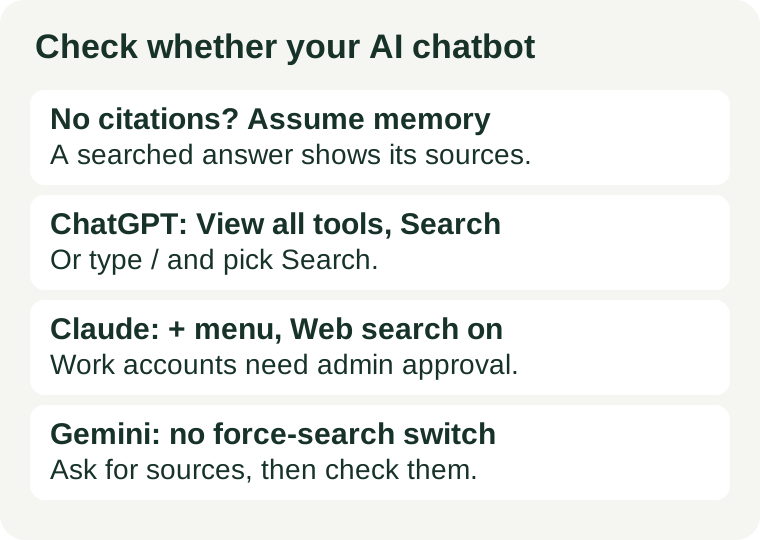
Every major chatbot has two sources for an answer: what the model learned in training, frozen at a cutoff date, and what it can fetch live from the web. Only the second one knows what happened this week. The three vendors handle the switch differently: ChatGPT usually searches on its own when a question needs current information, and lets you force it; Claude needs you to switch web search on for the chat; Gemini's consumer app offers no documented way to force a search at all. The check is the same in all three: look for citations, open one, and confirm the source is current and actually says what the answer claims.
1. Two sources, one visible difference
Without a search, a chatbot answers from its training data. That knowledge ends at the model's cutoff date, and the model cannot tell you reliably where that edge is — it may know a little about the months just before the cutoff and nothing after it, and it will still write a smooth, confident paragraph either way. With a search, the chatbot rewrites your question into search queries, reads live pages, and writes an answer that cites them. The visible difference is the evidence: a searched answer carries citations or a source list you can open. An answer built only from memory carries none. That is the first and fastest check. If there are no sources to open, assume the model answered from memory, whatever the topic was.
Do not ask the model to settle this for you. Asking “did you search the web?” or “what is your knowledge cutoff?” gets you another generated sentence, not a log of what the tool actually did. Check the vendor's model page for the cutoff date of the model you are using — OpenAI, Anthropic and Google each publish one per model — and check the answer's own citations for whether a search happened. Our citation check shows how to test whether a cited passage supports the claim, which is the next step after this one.
2. ChatGPT: usually automatic, always forceable — checked 2026-11-14
OpenAI's help article “Searching the web with ChatGPT” says ChatGPT may search the web automatically when your question would benefit from current information, and that you can start a search manually: open a conversation, select View all tools, then Search — or type / in the message composer and select Search. Web search is available on ChatGPT Free, Go, Plus, Pro, Business, Enterprise and Edu, and to people who are not signed in. Responses that use web search may include citations; select a citation to open its source, and select Sources, when available, to view the cited sources and other relevant links.
Two limits matter. First, the automatic decision is a judgement call: a question about a local business or a recent event is a likely trigger, while a request to tidy up an email is not — so a question phrased as general knowledge may never trigger a search even when the facts have changed. If the answer matters, force the search rather than hoping the trigger fires. Second, on Enterprise and Edu workspaces an admin can disable web search, and then ChatGPT will not use it even if you ask it to or select Search manually. If the Search option is missing on a work account, that is the likely cause, and it is a setting for your admin, not a bug to work around.
3. Claude: a per-chat toggle you must switch on — checked 2026-11-14
Anthropic's help article “Enable and use web search” says Claude searches the internet to provide up-to-date information, and that you switch it on while starting a chat: click the “+” button in the lower-left corner of the chat window and select “Web search”. You can disable it the same way at any time. When web search is toggled on, Claude invokes a search tool when a topic benefits from current information, and it can also fetch content directly from a web page when you give it a specific URL. Responses include citations so you can check the sources.
Two limits matter. First, the toggle is per chat, not a global setting — a new chat starts with the previous state only if you left it on, so check the toggle before you ask a question that needs fresh facts, not after you have already read the answer. Anthropic also says to include “Search the web” in your prompt to make sure it searches. Second, on a Team or Enterprise account an owner must enable web search at the workspace level first; until then members cannot switch it on for themselves. And searches count toward your usage limits, which matters most on a free account — Anthropic notes free-account limits reset every five hours, so turn search off again for chats that do not need current information.
4. Gemini: no documented way to force a search in the app — checked 2026-11-14
Gemini is the awkward case. In the Gemini API, grounding with Google Search is a documented tool: Google's developer page says it connects the model to real-time web content, lets it answer questions about recent events, and returns inline citations. But that switch belongs to developers building with the API. In the consumer Gemini app there is no documented setting that makes the app search on every prompt — Google's own help article says Gemini “may provide links to sources and related content” and that “not all responses include related links or sources”. The app decides for itself, and you cannot require it to search.
That does not make Gemini useless for recent facts; it makes the check more important. Ask for current information explicitly, name the date and the entity, and ask for sources. Then look for them: if the answer about a recent fact carries no source links, treat it as ungrounded and verify the fact on the source site yourself. The same rule applies to any chatbot whose search you cannot see or control — the absence of sources is the finding, not a reason to keep asking the same question in different words until a confident answer appears.
5. The five-minute search check
Run this once per tool, before you rely on a recent-facts answer for anything that matters:
- Look for citations first. A searched answer shows them: inline citation markers in ChatGPT and Claude, or a Sources list. No citations, no source list, no date — assume memory, and do not quote the answer.
- Force a search and compare. Ask the same question again with search explicitly on — in ChatGPT, View all tools then Search; in Claude, the + menu then Web search; in Gemini, ask for current sources by name. If the two answers disagree, the searched one is the one to check further, not the first one.
- Test with a fact you already know changed. Pick something recent you can verify yourself — a price, a result, a new release. If the chatbot gives the old value with confidence and no sources, it did not search. That tells you how this tool behaves before you trust it on a fact you cannot check.
- Open one cited source. Check its date and whether the passage supports the exact claim, not just the topic. A citation to an old page, or to a page that never says what the answer claims, is a searched-looking answer built on the wrong evidence — our citation check walks through this step.
- Re-check anything that costs money, health or reputation. News, prices, laws, product versions, who holds a job today — these change after any cutoff. A searched answer is a starting point, not a source: confirm it on the official page before you act on it. Our source-update check covers what to do when the underlying document changes after you saved an answer.
If any step has no answer — no toggle to switch on, no citations to open, no source that matches — that is not a maybe. It is a no for that fact, from that tool, in that chat. Use the tool for drafting and explaining, and get the recent fact from the source itself. And once you know which of your tools searches reliably, keep a one-line note of it: which toggle, where it lives, and whether your work account has it disabled. That note is what stops you repeating a confident, unsearched answer to someone else. Before a long session on a free plan, see how free AI chat limits work — searches count toward them, and a search-heavy check can burn a free allowance fast.
Red flags to note before you trust the answer
- A confident answer about a recent event with no sources. Recent facts without evidence are the exact case where memory fails silently. No citations means no search to verify.
- “As of my last update” with no date. A cutoff without a date tells you nothing about which facts are inside it. Check the vendor's model page for the date; do not take the model's word for it.
- Citations that do not contain the claim. A live link can point to the wrong version, an unrelated passage, or a page older than the event. Open it and read the surrounding text.
- A missing search option on a work account. Admins can disable web search for Enterprise and Edu workspaces. The tool then answers from memory without telling you, and asking it to search will not override the setting.
- The same question, rephrased until it sounds right. Re-asking does not add a search. If the first answer had no sources, the fifth rephrasing will not either — force the search or open the source yourself.